EML (Electronic Message Format) and MSG (Microsoft Outlook Message Item) are both Microsoft Outlook’s supported file formats to store email messages. Both formats may share similar properties but are not exactly the same. EML files store email messages, metadata, and attachments, while MSG files store more than that.
Just because MSG format offers additional benefits, users are switching from EML to MSG. In this blog, we will learn the detailed procedure of EML to MSG conversion. Before moving to the solutions, first let’s know the benefits of using MSG over EML.
Benefits of Using MSG Format Over EML file
Using MSG format over EML provides various great opportunities to users. Some of them are:
- MSG files are native format for Outlook which allows easy opening and saving of Outlook data.
- Users can save emails, attachments, contacts, tasks, calendars, and even appointments.
- MSG format preserves entire metadata such as sender/recipient details and read statuses.
- Dragging and dropping MSG file in Outlook creates a native, editable copy, other than attachment.
- MSG files are efficient, and less prone to errors in comparison with EML files.
How to perform EML to MSG conversion manually?
With Outlook’s Save As option, you can convert EML to MSG files. Here is how to do it:
- Open Outlook, then drag and drop the required EML files in it.
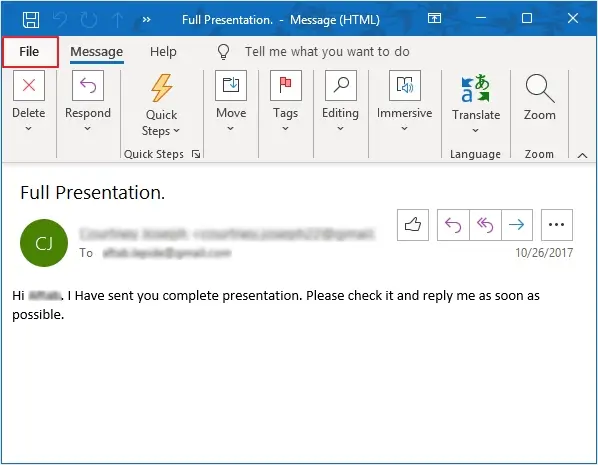
- Double-click on the EML file to open it in a separate window.
- Click on the File option.
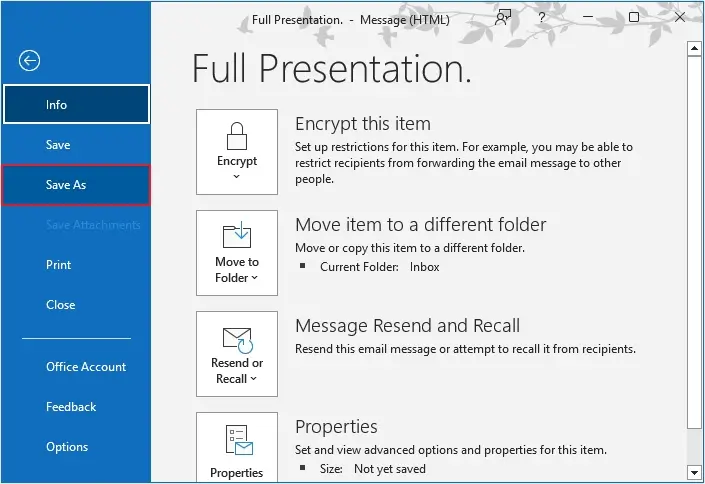
- Click Save As.
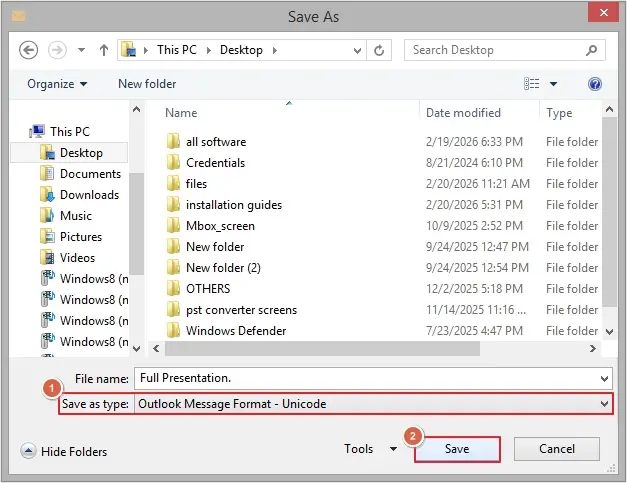
- Provide destination, then select Outlook Message Format in Save as type and click Save.
Why not choose manual EML to MSG conversion method?
There are multiple shortcomings of manual methods. Some of them are:
- You can only save one EML file as MSG at a time.
- Converting bulk files might take hours.
- Chances of losing email attachments and metadata.
- High possibility of human errors while performing EML to MSG conversion.
- You might leave some important emails without converting them.
So, you might be thinking, what would be the best possible way to perform the conversion? It’s using an automated EML to MSG converter tool.
Automated tool to convert EML to MSG
You can save only a few EML files as MSG with manual method. If you want to convert EML to MSG in bulk, you need a professional tool. Our EML to PST Converter tool offers the best features, allowing users to convert unlimited files in a single conversion cycle. Some of its key benefits are:
- Add both EML and EMLX files to the software for conversion.
- Powerful algorithm to preserve email messages in the original form.
- Auto-locates the EML file from the local system.
- Save files with customized name using File Naming Convention feature.
- Preserves email messages in the same formatting as the source file.
- Allows to save attachments separately for better management.
- Keep logs for items not converted (happens in special cases only).
- Supports all Windows operating systems.
- The EML to MSG converter free version allows you to convert 10 items per folder.
Conclusion
EML to MSG conversion can easily be done with free methods, but for bulk conversion these methods won’t work. In this situation, we recommend using our EML to MSG converter free tool. With this tool, you can even convert EML to PDF, PST, DOC, HTML, etc. Download the EML to MSG converter free tool now and experience lightning-fast conversion.
FAQs
A. To convert EML to MSG with Outlook, first make sure you have the desired EML files in it, then open it and go to File, click on Save As, and select Outlook Message Format. Your EML file will be converted and saved in MSG format.
A. Yes, you can easily perform bulk EML to MSG conversion with our tool. There are no file size limitations with this tool.