Imagine this, you need to access important sender details or verify some MIME details but the moment you go to open your email’s header, you can’t find it. Sounds familiar? Many users are experiencing the email header not showing in Outlook error these days. This can be downright frustrating and can even bring an organization’s productivity to a screeching halt.
The root cause for this issue can’t be pinpointed to a single thing. However, a lot of people have reported that this issue has become an increasingly common occurrence ever since Microsoft rolled out the New Outlook interface. This guide explores the main reasons why email headers disappear, and the steps to restore them back safely.
Outlook Header Errors: Causes and ways to fix them
| Error | Cause | Method to Fix It |
|---|---|---|
| Blank internet headers | Synchronization issue | Reset Outlook View |
| Missing Outlook properties option | New Outlook UI limitation | Use Outlook Classic |
| Missing view message source option | New Outlook UI change | Access message via Outlook Web |
| Unavailable MIME headers | Policy limitation | Check the configured Microsoft 365 policies |
| Unavailable email metadata | Conflict with third-party add-ins | Disable add-in or open Outlook in safe mode |
| Incomplete header information | Synchronization delay with Exchange | Turn off Cached Exchange mode |
What are Email Headers in Outlook?
Email Headers in Outlook refer to the metadata of an email stored in a coded format. These codes store information about an email like sender and receiver’s address, timestamps, email servers, and sender’s IP address. Although, the basic ‘From’, ‘To’, and ‘Subject’ fields are easily visible to all, the email header contains detailed information and authentication records.
How are these email headers helpful?
- Security purposes: Attackers display a fake name during a phishing or spoofing attack. Their true information like server information and IP addresses can be seen in the email headers.
- Rectifying email delivery: IT Admins take the help of email headers to verify the issue if an email is delayed or not getting delivered.
- Email authentication: Email headers help in checking if the incoming emails have passed security protocols like SPF, DKIM, and DMARC.
- Check for spam: IT admins can check and filter spam emails and trace their original source to update and strengthen security rules.
Common signs of Email Header Not Showing in Outlook Error
Users might see some common signs when they can’t find internet headers in their Outlook emails:
- Collapsed header space: Users will see only empty space or just the sender’s name if email header is not showing up.
- Empty internet headers box: If the Internet headers’ box appears when you check properties of an email, then maybe there’s a synchronization delay.
- No mailbox columns: There might be an issue with email headers if the From, To, Subject, Received columns are missing.
- Message source unavailable: If there’s a delayed email or unsent email, you might face an error while trying to see the message source details.
Reasons of Email Header not showing in Outlook error
Different reasons are there behind the Email header not showing issue:
- UI changes: Ever since the introduction of New Outlook, there has been significant UI changes. Now with the simplified interface, many of the advanced diagnostic options are either unavailable or have now moved to a different menu.
- Antivirus or third-party security plug-ins: Antivirus or third-party security add-ins can sometimes interfere with MIME processing of incoming emails.
- Restricting Microsoft 365 policies: Users might not be able to see Email Headers because of some Microsoft 365 policies.
- Reading pane restrictions: Reading pane doesn’t always display email properties like headers. Email headers might be hidden at a different place instead of being missing.
- Outlook profile is corrupt: Corruption in Outlook profile can interfere with its functions and gives rise to errors like Email Header Not Showing in Outlook.
View Email Header in Outlook 365 and Other Outlook Versions?
The steps to view email headers depends entirely on which Outlook version you currently use.
For Outlook 365, 2021, 2019, 2016
- Double-click on the email to open it in a separate window.
- Click on File > Properties.
- Find the Internet Headers section at the bottom of the window.
For New Outlook for Windows
- Click on any email to open it.
- Click on the three dots in the top-right corner of the window.
- Choose View Message Source
For Outlook Web Application
- Double-click to open an email.
- Click on the three-dots menu.
- Choose the View or View message details
For Mac Outlook
- Open email in a separate window.
- Go to Menu and select View.
- Click on Message > All Headers or View Source
How to Fix Email Headers Not Showing in Outlook?
Few of these methods can help you fix the email headers not showing in Outlook issue. Choose the method that suits you the best based on the root cause of this issue.
Use this easy guide to choose the best method:
- Internet headers were visible before but disappeared later: Try opening email in a separate window or launch Outlook in safe mode.
- Can’t find the option to view headers in New Outlook? Try finding the View Message Source option.
- Working on a shared or corporate Microsoft 365 account? Check for any restricted policies.
- Damaged Outlook profile? Create a brand-new Outlook profile.
Method 1: Open Email Message in a Separate Window
There’s a chance you’re not able to see internet headers in Outlook because of reading pane limitation. Sometimes, the reading pane doesn’t display all the message properties at one place. Try opening the email in a new window to check Message Properties.
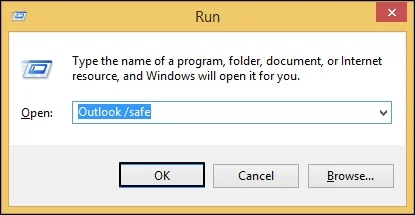
Method 2: Launch Outlook in Safe Mode
Running Outlook in safe mode momentarily disables all the add-ins that may be causing this issue. Follow the steps to do this:
- Press Win + R on your keyboard to open the Run dialogue box.
- Enter exe /safe in the window to launch Outlook in safe mode.
Method 3: Turn Off Faulty Add-ins
Sometimes third-party add-ins can interfere with Outlook’s functionality and may even block some features. Try disabling them with the given steps to see if it resolves the issue:
- Launch Outlook and click on File > Options.
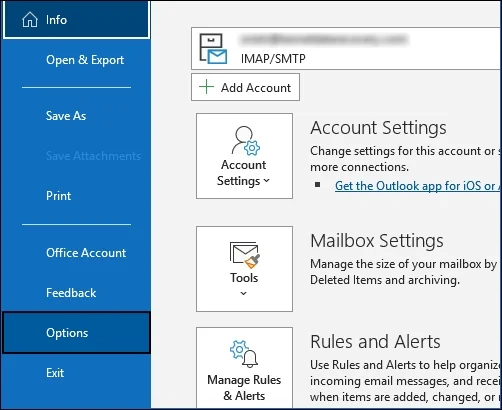
- In the Add-ins section, click on COM Add-ins > Go.
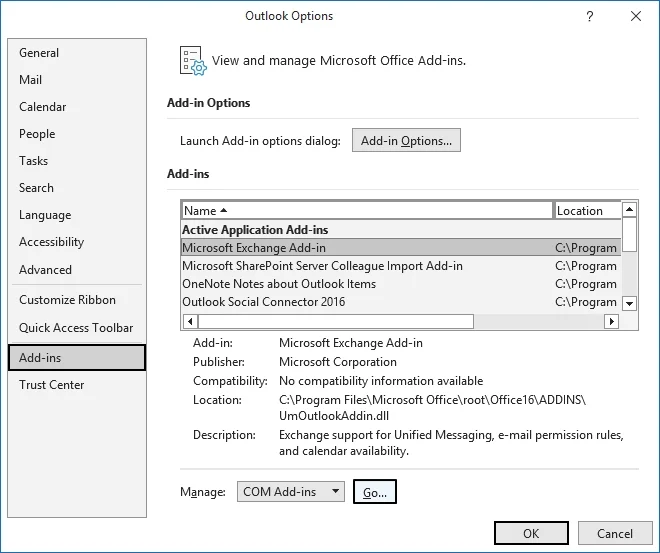
- Untick all the problematic add-ins and click OK.
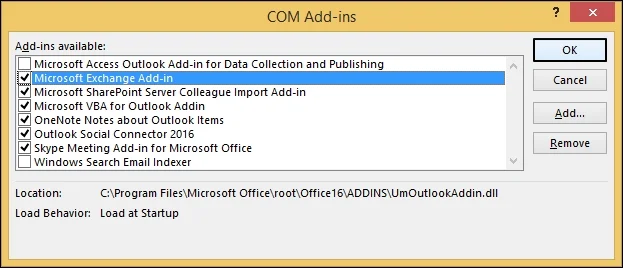
- Launch Outlook again to see if the issue got resolved or not.
Method 4: Check Microsoft 365 Policies
If you’re on a shared or corporate Microsoft 365 plan, then maybe you’re not allowed to view internet headers because of certain Microsoft 365 policies. Either ask your IT admin or if you have admin credentials, check Microsoft 365 policies with following steps:
- Sign into Microsoft 365 Admin Center with admin credentials.
- Go to Exchange Admin Center.
- Go to Mail Flow > Rules.
- Look for rules that say Remove this header or Modify message properties.
- Also, make sure to verify Communication Compliance policies to check for any header stripping policies in place.
Method 5: Create a New Outlook Profile
There’s a high chance that you’re facing email header not showing in Outlook error because of a corrupt Outlook profile. Follow the steps below to create a new profile:
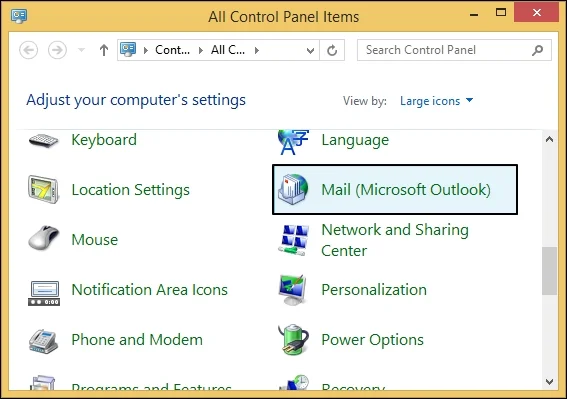
- Launch Control Panel of your system and select the Mail (Microsoft Outlook)
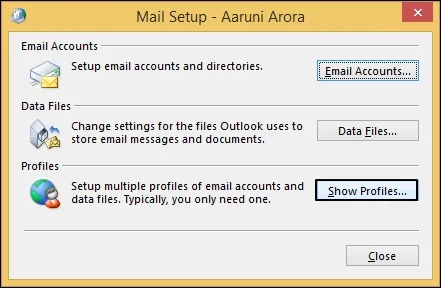
- Click on the Show Profiles option and then select Add.
- Name your new profile and click OK.
- Follow the instructions on the screen to create a new Outlook profile.
Pro Tip: Creating a new profile means shifting all your mailbox data into the new Outlook profile. Doing this manually can be difficult at times and may even cause data loss. To counter any such complexities and safeguard your data , use KDR Import PST to Office 365 utility. Use the features for bulk import of PST files directly to the new Outlook profile. Moreover, the tool is one of the best ways for migrating all your Outlook data without disrupting the current file and folder hierarchy.
Closing Insights
Email headers are the one of the easiest ways to check important email information like delivery paths, sender’s information, and authentication records to prevent phishing and fix mail flow issues. It also helps to validate SPF, DKIM, and DMARC security protocols. If you face issues with email header visibility, it can be due to Outlook profile or data file corruption.
People also Ask
Internet headers may appear blank in Outlook because of synchronization problems or due to a corrupt Outlook profile.
Simply open any email and click on three dots (menu). Now choose the View Source option from there.
Yes, transport rules of Exchange Online mailbox can be the reason why you can’t view email headers in Office 365. This can only be fixed via the Microsoft 365 Admin Center.
MIME headers information can be found in the Internet Headers section of Outlook emails. These important header fields include Return path, received fields, SPF records, DKIM authentication, and the original sender’s ID.