Just like Outlook for Windows, Outlook for Mac is one of the most popular email clients used by Mac users. Although sometimes Outlook won’t open on Mac systems due to one issue or another. It can be frustrating, honestly, to get locked out of your essential data like this. This can be because of a variety of reasons rather than pointing out one. In this blog, we’ll talk about the most common reasons behind why Outlook won’t open error occurs, and some effective ways to resolve this issue.
Why Microsoft Outlook Won’t Open on Mac? – Major Reasons
There are several reasons why Outlook stops working on a Mac system. Some of the common issues include:
- Update issues: A recent update of Outlook might not have installed properly, which may cause Outlook to crash when starting it.
- Corrupt Outlook profile: If Outlook profile gets damaged, the application will abort the launch request and fail to start.
- Permission issues: Recent versions of macOS have strict security regulations, which might hinder the start of some applications. If Outlook fails to open on macOS, then it must be an issue with accessibility permissions.
- Add-in conflicts: Conflicts can arise with the add-ins of Outlook or with antivirus, which may interfere with the launch request.
- Outdated software: Your version of Outlook or macOS may be outdated and hence may be causing issues with starting Outlook.
Simple fixes to resolve Outlook won’t open on Mac issue
There are plenty of fixes to resolve the Microsoft Outlook won’t open on Mac error in a few simple steps. Apart from basic troubleshooting tips like checking the internet connection or looking for updates, we’ve given some easy-to-perform methods to fix the issue.
Method 1. Disable Outlook add-ins
Sometimes, certain third-party add-ins restrict Outlook from starting normally. You can try to disable them to check if they’re the culprit behind this issue. Follow the steps below to disable the add-ins in Outlook for Mac:
Step 1. Go to File and click on Get Add-ins > My Add-ins.
Step 2. Right-click on the add-ins that might be causing problems and choose Remove.
Similarly, check if your Antivirus isn’t hindering with the launch of Outlook. If it is, disable it temporarily and restart Outlook. If it resolves the issue, then complete your work and enable antivirus as soon as possible. Sometimes, antivirus can interfere with Outlook’s operations but disabling it isn’t recommended as it can make your system vulnerable to threats.
Method 2. Check out for faulty Outlook identity
Older versions of Outlook may clash with the newer versions, causing a clash with Outlook identities. This usually happens when your Outlook profile gets corrupted. To check if your Outlook identities are faulty, follow the steps below:
Step 1. Go to Finder on your Mac system, click on Documents > Microsoft User Data.
Step 2. Choose Office 2011 Identities and copy the identity folder.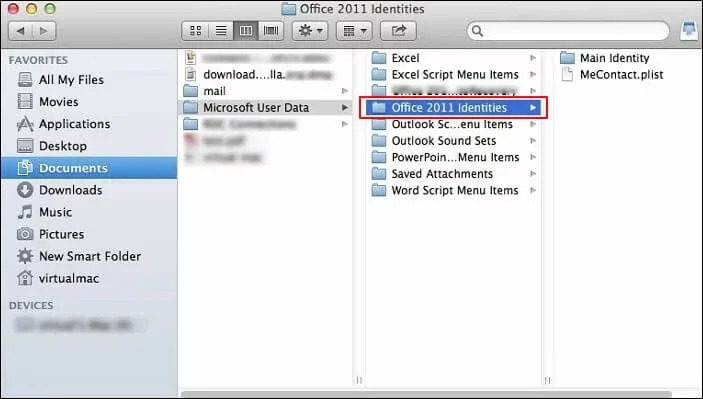
Step 3. Drag it to the desktop and restart Outlook for Mac to see if the issue has been resolved or not.
Method 3. Use Disk Utility tool of MacOS
Disk Utility is a tool developed by macOS to manage storage, check and repair errors, and format Mac devices easily. Try to run this and see if this fixes the issue. Follow the steps below to run this utility:
Step 1. Press Command and Spacebar and type Disk Utility.
Step 2. In the Disk Utility window, choose the First Aid option.
Step 3. Click on Run to start the repair process and then click Continue to confirm your choice.
Step 4. Wait for the process to be completed.
Step 5. Once the process is completed successfully, relaunch Outlook for Mac and check if the issue is fixed.
Outlook won’t open on Mac? Backup your OLM files with an OLM to PST converter
Manual fixes like the ones mentioned above can do the trick if your Outlook profile or data file isn’t corrupted. But if corruption is the reason you’re dealing with this issue, trying to open Outlook with these methods may be difficult. You may also lose essential data because of corruption. Also, these methods fail to recover data from corrupt or inaccessible OLM files. It’s better to save a backup of your data in a more accessible format, like PST, using a trustworthy OLM to PST converter tool.
KDR OLM to PST converter is an advanced utility that recovers data from corrupt or damaged OLM files and saves them in PST format. This software executes the conversion with 100% precision and saves the converted PST file at the location of your choice. Preview data of the added files before conversion and save them in formats like PST, MSG, HTML, etc., with the original data structure.
Tips to prevent Outlook won’t open on mac error
Certain tips can prevent the Outlook not opening issue from occurring. These tips include:
- Update everything: Keep your Outlook and macOS up to date to avoid missing any critical updates or bug fixes.
- Avoid force-quitting: Avoid using the Force-Quit option of Outlook while syncing data. Allow it to completely sync all the data and then close it properly.
- Check add-ins: Regularly check for and update Outlook add-ins to make sure that they’re not causing any problems. Install add-ins from only trusted sources and remove any that aren’t in use.
- Proper shutdowns: Make sure to properly close Outlook applications and Mac system once all the operations have finished. Shutting down Outlook or your system while any operation is still running only causes issues.
Conclusion
Being locked out of your important data is a frustrating thing to experience. To help you navigate through this experience, we’ve given some easy troubleshooting tips for you to resolve the Outlook won’t open error. For a better understanding of this error, we’ve also given some common reasons why Outlook won’t open on Mac. Use a recommended tool to recover data from corrupt OLM files with guaranteed precision.
Frequently asked questions
A. Potential reasons can include an outdated Outlook application or macOS, a corrupt Outlook profile, and a conflict related to add-ins.
A. Try using the Disk Utility or use a trusty OLM to PST converter to recover data from corrupt or inaccessible OLM files easily.