User Query:”Our president recently bought his new MacBook Pro on which he was trying to sign in to his Exchange Server based email account within Outlook. We’re working with the Exchange Server 2016. What we’re facing is that Outlook is allowing us to send/receive emails initially, but a few hours later, there’s no syncing. The issue is unresolvable even if we use the Send/Receive option. We’ve tried everything we could, from clearing the local cache to removing and re-adding the account. Nothing’s helping out. Please suggest any solution.”
This was just one of several queries we received mentioning the same issue with Outlook for Mac. For all the users worried about disruptions in their workflow due to this error, this article is the ultimate guide that provides complete steps to troubleshoot the error from root. Let’s start!
Why are you seeing Outlook for Mac not syncing with Exchange Server?
There are several factors that can lead to this error. Before proceeding further to learn how to fix Mac Outlook not syncing with Exchange Server, check out the causes behind it:
- Due to weak or unstable internet connectivity, Outlook application might face syncing issues.
- Corrupted Outlook data file or profile often results in syncing errors.
- Working with an outdated version of Mac OS can show you the Outlook for Mac not syncing issues.
- Incorrect account settings due to using wrong credentials can restrict Outlook for Mac from syncing with Exchange Server.
- Issues in the Exchange Server can interrupt the synchronization between Outlook and Exchange for some time.
- Working in offline mode with OLM can also prevent data syncing between the server and Outlook.
What happens when sync between Outlook for Mac and Exchange is disrupted?
Repercussions of errors like Outlook for Mac not syncing with Exchange Server are always a concern for any Outlook user. Here are the impacts that this error tends to make:
- Users might miss new and crucial business emails that might affect client relationships.
- Causes delays and lags in responses to important emails, breaking the communication flow.
- Create issues with data security as it leaves the scope for data breach and corruption.
- There are high risks of data corruption within file, which results in data inaccessibility.
General fixes for Outlook not syncing with Exchange Server
There are solid solutions that involve a proper process, as explained in the sections ahead. However, we will get to that later after learning about some quick fixes:
- Check credentials: Cross-check all the used credentials like email ID, passwords, server ID, etc., and rectify if you entered the wrong information.
- Clear cache: Clear all the cache files from the system and Mac Outlook by clicking on Properties, then General, and selecting Empty cache.
- Reinstall Mac Outlook: When the issue is due to outdated Outlook for Mac, try updating or re-installing the software.
- Check internet: The internet connection you are working on should be stable and of high bandwidth.
- Restart Outlook: Simple restart of Outlook and computer often fixes the issue that other big solutions can’t.
- Verify Exchange Server settings: Verify the Server settings in Outlook to check that the server is configured rightly.
- Clear cache: Clearing cache from Outlook (Properties > General > Empty Cache) is another efficient fix that might help you restore the email communication.
Outlook for mac not syncing with Exchange Server: Free solutions
Let’s now check out some practical solutions that will help you get rid of the Outlook for Mac error. Follow each step cautiously to avoid committing errors:
Solution 1: Recreate Outlook for Mac file
When the existing error is due to the issue with Outlook for Mac file, you need to recreate it to see if the issue is resolved.
Step 1: Close all the ongoing Outlook process and exit the software.
Step 2: Open Microsoft Database Utility by clicking on Outlook application and the Alt key.
Step 3: Select your Outlook profile you need to recreate and hit Rebuild.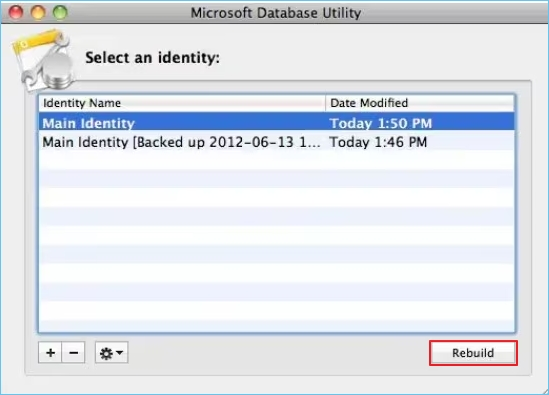
After the process completion, click on Send/Receive option to see if the Outlook for Mac not syncing error is resolved.
Solution 2: Remove and add the Outlook account again
This method requires you to remove the problematic Outlook account and add it again to fix the issue. Follow the steps below:
Step 1: In Outlook for Mac, from top ribbon, click on Outlook and then Preferences.
Step 2: Select Accounts from the Outlook Preferences window.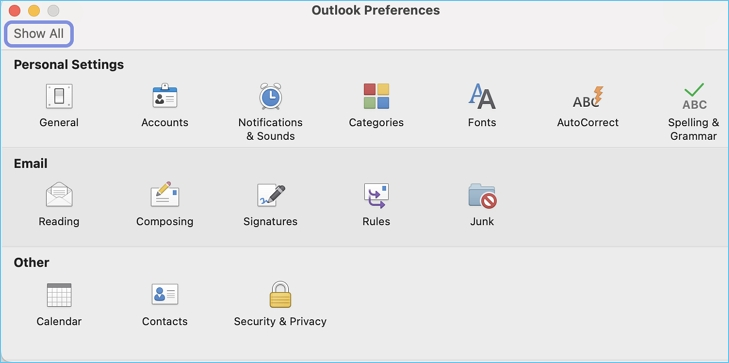
Step 3: Select the account with the issue and click – to remove the account.
Step 4: Click + to add the account again by entering the required credentials correctly.
Once your account is added, try accessing the mailbox again and see if the issue is eliminated.
Solution 3: Recreate the Outlook Profile
Sometimes, when the issue is in the Outlook Profile (corruption), the error tends to persist stubbornly and creating a new Outlook profile seems to be the only solution. Here’s how to create a new profile:
Step 1: Go to the Applications folder in the Finder.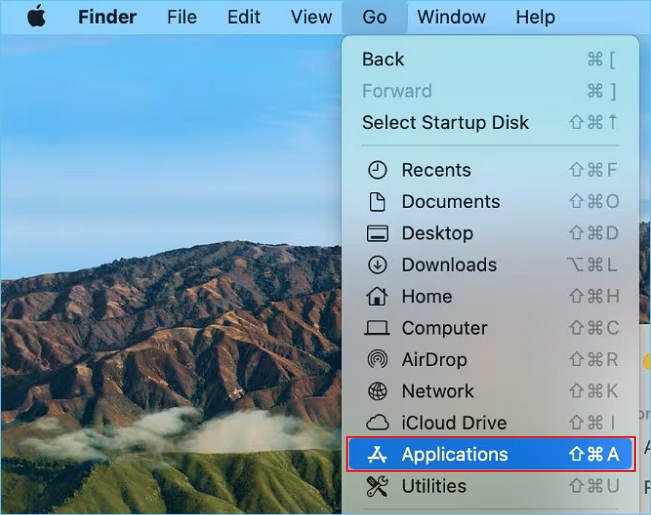
Step 2: Right-click Microsoft Outlook, and select Show Package Contents.
Step 3: Click Contents> Shared Support > Outlook Profile Manager.
Step 4: From the options here, you can perform Create a new profile action using + button.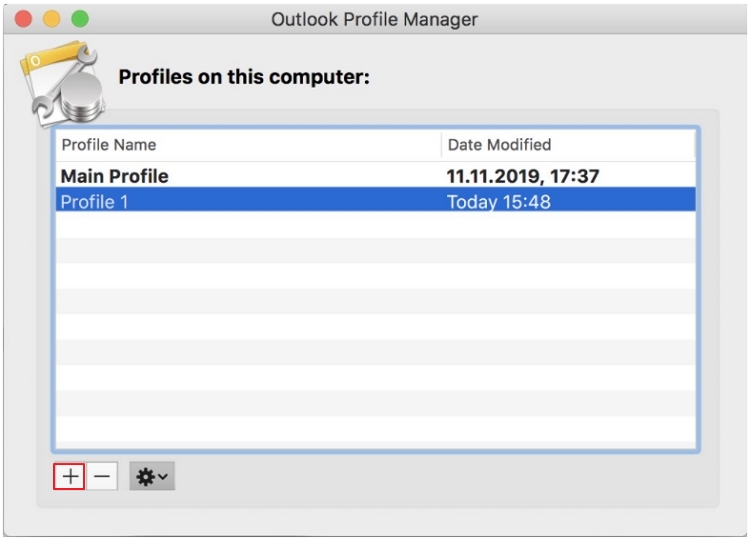
Once you create a new profile, select and use it to send/receive messages, and look for the error.
Solution 4: Disable Outlook offline mode
Use the following process to disable Outlook Offline mode and resolve the error Mac Outlook not syncing with Exchange Server:
Step 1: Open Outlook application and select Outlook from top and then click Work Offline.
Step 2: Now, move or delete all emails from the Outbox folder.
Step 3: Go to Outlook menu again and disable the Work Offline mode.
Step 4: Check if you are able to send or receive emails within your mailbox after the adjustments.
Best solution to fix Outlook for Mac not syncing with Exchange Server
Sometimes, the error occurs due to a problem in the Outlook data file. The best solution to fix this would be to convert OLM to PST and access the mailbox on Windows Outlook. You can use the professional KDR OLM to PST Converter tool in this scenario to export data from OLM files and save it to PST. Some advanced features supported by the OLM to PST Converter include:
- Recover and extract data from corrupted OLM file and save it to PST.
- Perform bulk conversion of files at once, irrespective of the file size.
- Convert complete OLM file or selective mailbox folders as required.
- Save data from the OLM files to PST, PDF, HTML, and MSG file formats.
- Apply date and item type data filters for selective data conversion.
With this tool that helps you export OLM to PST, you can escape from the limitations of the manual process that otherwise might disrupt the data. There are no complications when using this tool as it is intended to simplify the user experience.
Conclusion
With so many quick fixes and manual methods available in this guide, you can resolve Mac Outlook not syncing with Exchange Server. However, when there is issue in the Outlook data file, even this long list of solutions tends to fail. In such circumstances, you need to handle your data files (OLM) efficiently and convert them to a more efficient format like PST. Use the recommended KDR OLM to PST Converter tool to convert your OLM file data within much less time than manual solutions.
Common user queries
Ans. Here is how to update your Outlook application:
1. Go to Outlook for Mac and click on Help.
2. Select Check for Updates.
If any new updates are available, you can update the software from here.
Ans. Firstly, speak to your Exchange administrator and ask about the Exchange Server version that you are working with. This is because OLM supports email accounts connected to Exchange Server 2010 Service Pack and its later versions.
Using a version before 2010, will show errors, which means you need to upgrade your server version to continue accessing your emails.