MP4 format is the default format for almost all devices to save their videos in. From personal videos to educational and even professional videos shot from smartphones and GoPro are saved in MP4 format. However, MP4 files often get damaged due to either corrupt storage device or an unsupported codec.
Depending on the reason and level of corruption, these files can be relatively easy to recover. If the damage isn’t much serious, downloading these files again from the source or installing the right codecs can get the job done. But, if the MP4 files are highly corrupt, using a dedicated video repair utility can be the best choice. We’ve given the potential reasons behind the MP4 Video Stopped Playing in Middle error and some easy fixes to resolve this issue.
MP4 Stopped Playing in Middle – Reasons for this Error
There can be several reasons why an MP4 file stops playing suddenly, some more serious than others. We’ve given the most common reasons below:
- Codec issue: Incomplete codecs often create issues while playing different format of video files. The media player fails to play MP4 video files properly without complete codec files.
- Improper file download: MP4 might have issues during playback if the download process was interrupted in between. The MP4 video file can also have playback errors if it wasn’t transferred properly.
- Corrupt graphics driver: MP4 videos might be experiencing playback issues due to corrupt or outdated graphic drivers.
- Media player conflict: MP4 can have playback issues if your media player doesn’t support the MP4 format.
- Corrupt storage device: Bad sectors on your storage drive, corrupted memory card, or a damaged USB drive can cause serious damage to MP4 files.
Quick tips to resolve the MP4 video stopped playing in middle issue
In case of minor corruption in MP4 files, the given tips can resolve the issue and deliver an instant solution.
- Try to download the MP4 file from the source again to check if the issue is resolved or not.
- Download the missing codec packs to play MP4 files smoothly.
- Play MP4 files with a different media player that supports a wide variety of video formats.
- Install the latest updates of your media player and play MP4 file again.
How to fix MP4 video stopped playing in middle error?
Now that we know the reasons behind this error, lets discuss the methods to fix it.
Method 1. Install the missing codecs
Codecs compress and decompress digital videos for better storage, streaming, and transfer of the video files. These videos are essential for a smooth video playing experience and absence of codecs gives rise to the 0xc00d36c4 error. Follow the steps to install the correct codecs for MP4 file:
- Choose a reputable codec pack like K-Lite Codec Pack to download.
- Download it from the official website and either download the standard or basic version.
- Install the codec file by following proper on-screen instructions.
- Close and restart Windows Media Player to run MP4 file with the new codecs.
Method 2. Convert MP4 files to another format
If your MP4 stopped playing in the middle abruptly, there can be an issue with the video format. Try converting it to another format to see if the issue is resolved or not. The steps to convert MP4 to another format are:
- Open the problematic MP4 video in VLC media player.
- Click on Media tab and select Convert/Save from the drop-down list.
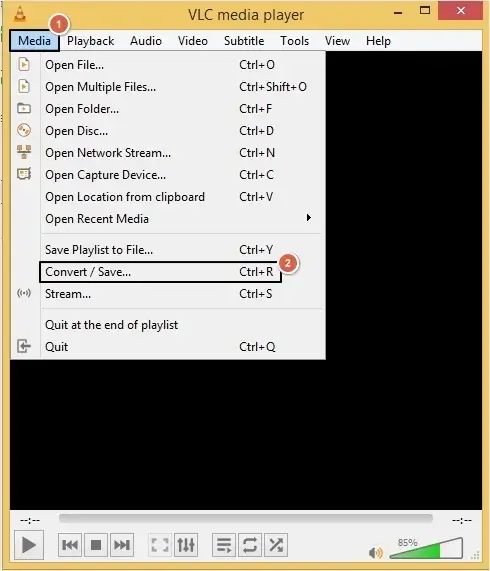
- In the newly opened window, click on Add button to upload the required MP4 file and then hit the Convert/Save
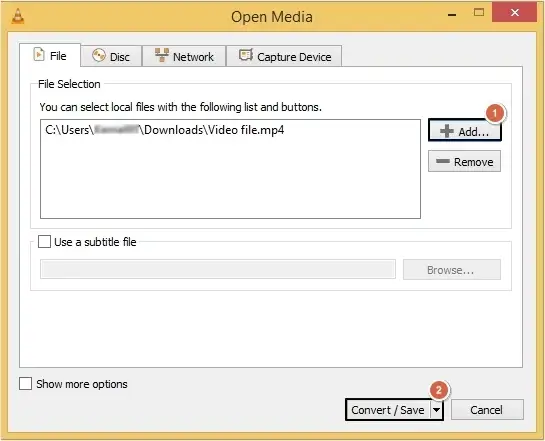
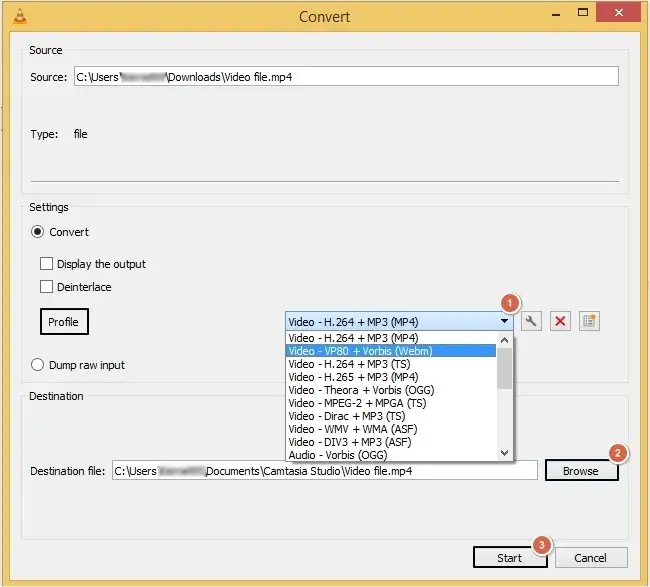
- In the Profile section, choose another video format from the drop-down list.
- Click on Browse to choose a saving location for the converted MP4 files and press the Start.
Method 3. Update graphic drivers
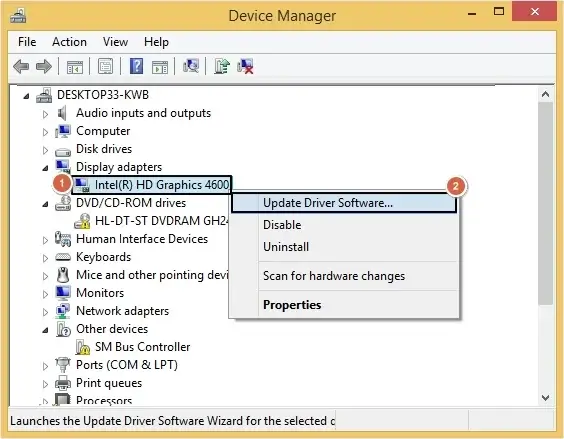
Another common reason behind video errors is using outdated graphic drivers. If graphic drivers aren’t updated regularly, they can create issues while playing video files. Follow the steps below to update your graphic drivers:
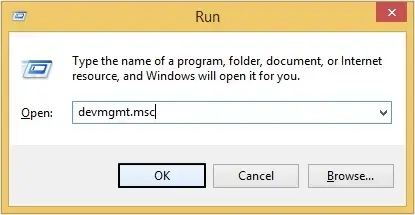
- Press Windows + R on keyboard and type msc in the Run window.
- Right-click on Display adapters and select the Update Driver Software.
Automated method to repair severely corrupt MP4 files
Manual methods and the tips highlighted in this write-up are sufficient to resolve the MP4 stopped playing issue if the video files aren’t corrupted that much. But if the above given methods fail to recover your file safely, then it’s better to take professional help. Using a reliable MP4 Repair tool like KDR MP4 repair is the best choice possible to repair damaged, unplayable, or frozen MP4 safely. Some characteristic features of our tool include:
- Repair multiple corrupt, damaged, or frozen MP4 video files in few easy steps.
- Repair even large-sized MP4 files having complex resolutions like 4K/8K without compromising with the quality.
- Preserve the original formatting, video quality and all the other metadata during the repair process.
- Supports repair of MP4 files from all types of cameras, including DSLRs, smartphones, drones, etc.
- Guaranteed zero data loss video repair process to recover MP4 videos to their original quality without any changes to the video.
Conclusion
MP4 files can encounter several issues if they’re not edited or downloaded properly. Corruption in MP4 files can alter the audio or visual components of the file and damage them completely. Fixes like installing proper codecs or downloading them again can resolve the issue if the damage is not that severe. However, in case the MP4 file is corrupt beyond repair, the best bet is to take the help of the recommended MP4 repair software.
Frequently asked questions
A. This usually happens when MP4 file gets corrupted either because of improper download or even because of missing codecs. Try downloading the file from its source again or convert it to another format.
A. Yes! There’s a high chance your MP4 file may be corrupt and that’s why it’s having playback issues.
A. The safest way to repair MP4 files without damaging the original video quality and formatting is to use a professional video repair tool.