Outlook Classic End of Life? Myth or Reality?
Microsoft has announced end of life for Outlook Classic in 2029 (near April). After Q2 2029, no new updates and security patches will get introduced for classic Outlook. The transition is already in progress for Microsoft 365 Business and Enterprises license users.
Since April 2026, New Outlook client has become the default email client for eligible individuals. We cover the important dates, significant changes, and who will be the most affected from this change below.
What is Outlook Classic End of Life?
Ever since “Outlook Classic End of Life” news, users are panicking about losing their data as no more Outlook Classic updates will happen. There’s only one question in everyone’s mind currently, ‘When will Outlook Classic be retired?’
Many users are left confused about the Outlook Classic End of Life timeline. Though the support extends till 2029, Microsoft advises users to adopt New Outlook soon. Organizations must communicate with their teams, backup all their data, review compatibility, and plan effective migration strategies. Outlook Classic will not stop working completely, but the data can get exposed to threats without any new security patches. Also, users will no longer be able to connect it to other Microsoft 365 services.
Is the Classic Version of Outlook Being Replaced?
Yes, Outlook Classic will eventually be replaced with New Outlook by April 2029. Microsoft intends to replace Outlook Classic to fulfill its “One Outlook” vision. Other than that, Microsoft prompted this change for the following reasons:
- Unified cross-platform experience: The same interface and working of Outlook across Windows, Mac, web, and mobile version.
- Quick feature implementation: Features will be developed only once and then get deployed across all versions.
- Better security: The framework of New Outlook is much more secure than the legacy architecture of Outlook Classic.
- Copilot integration: New Outlook client is developed for Copilot and AI integration, something which isn’t possible in Outlook Classic.
Outlook Classic End of Life (EOL) Complete Timeline
The transition from Classic Outlook to New Outlook will happen in four distinct phases. And the first phase has already begun as of April 2026.
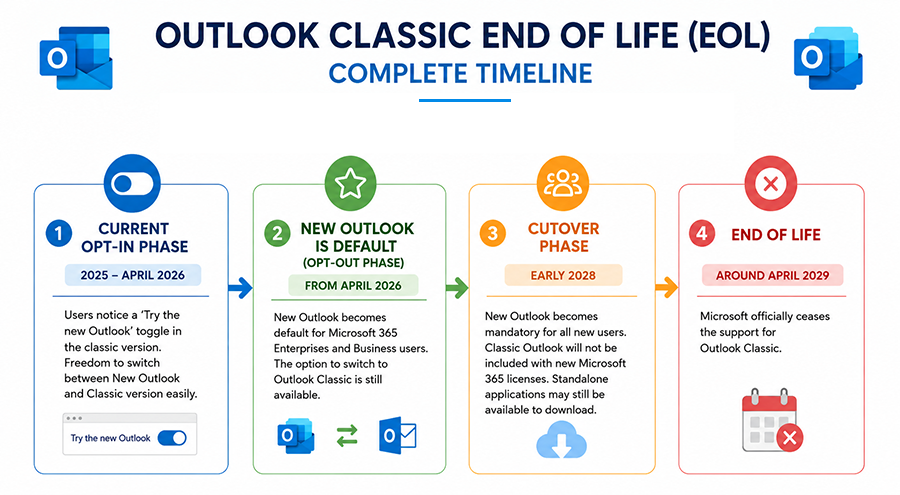
Phase 1: The Opt-In Phase (2025 – Early 2026)
Classic version of Outlook was still the default email client for users. A toggle saying ‘Try New Outlook’ appeared in top-right corner of Outlook Classic. It was possible to switch back and forth between Classic Outlook and New Outlook. Moreover, users could run both versions of Outlook at the same time in this phase.
Phase 2: The Opt-Out Phase (April 2026 Onwards)
This phase is live now for majority of Microsoft 365 Enterprises and Business users. Now by default, New Outlook opens whenever you open Outlook. If you want to open Classic version, you must toggle back to it.
Initially, April 2026 was the final deadline for standard Microsoft 365 users. But Microsoft extended the Classic Outlook Retirement date till 2027 as a response to user feedback. Considering how New Outlook still doesn’t have many features of the classic version, this extension was necessary. If you wish to request for inclusion for a particular feature, you can do so using Microsoft’s official feedback portal.
Tip for IT admins: Go through the official Microsoft 365 Roadmap for New Outlook and analyze what changes need to be made in advance.
Phase 3: Cutover to New Outlook Phase (Early 2028)
Outlook Classic will be removed from new Microsoft devices. Although, standalone applications will still be available for download. But the classic Outlook application won’t be available with Microsoft 365 licenses by default. This is like a point of no return for Outlook Classic users. For standard users, this phase is somewhat of a forced migration to shift all data to the New Outlook client. Classic Outlook will not connect to other Microsoft services anymore (like Exchange Online) and accessing it will get tricky.
Phase 4: End of Life for Outlook Classic (Q2 2029- approx. April)
This is the final deadline. Post Q2 2029, all support for Outlook Classic will get revoked by Microsoft. Most importantly, there’ll be no new security patches to address potential security issues. If you face any issues, Microsoft won’t troubleshoot it. Using Outlook Classic post EOL will become a serious security and compliance risk for any organization.
Who is Most Affected by Outlook Classic End of Life?
Not every user will be affected in the same manner. Here are all the people that are most affected by the Outlook Classic EOL announcement:
| Who is Most Affected? | How are they Affected? |
|---|---|
| Standard Outlook Users | Outlook users who frequently utilize features like shared calendars, rules, offline access, and advanced customizations. |
| Big and small businesses and organizations | Organizations using Exchange configured with old version of Outlook (2021, 2019, 2016, etc.). |
| IT Admins managing big Office 365 environments | IT admins handling Office 365 environments that heavily rely on COMs add-ins, having large-sized legacy PST data, potential compliance gaps. |
| Universities and educational institutions | Educational institutions still using old version of Outlook to access data and shared calendars. |
Has Microsoft Accelerated Classic Outlook Retirement Date Timeline?
Even though there’s no official message that Microsoft has accelerated Classic Outlook’s EOL, some users feel otherwise. A few incidents suggest that Microsoft is in a hurry to make users adopt New Outlook for Windows soon. Some observations confirming this fact are:
- New Microsoft devices don’t have Outlook Classic: People purchasing new Windows 11 PC get New Outlook for Windows as their default email client. Unlike before, Classic Outlook isn’t pre-installed in new devices.
- Installing Outlook Classic isn’t easy anymore: There isn’t any straightforward way left to install Outlook Classic on new PCs. The standalone email client can no longer be found in Microsoft Store. Also, there’s no download button at times to dissuade users to adopt New Outlook.
- A suspicious registry key: Many users recently found out that they weren’t able to open their Outlook Classic application. This happened because this ‘’NewOutlookAutoMigrationType’ registry key was blocked in their system by default. This key allows IT Admins to block or control the automatic migration of Classic Outlook data to New Outlook.
How to Safeguard Your Legacy PST Data Before the EOL Deadline?
Individuals and organizations having years of legacy PST data including contacts, calendars, old emails, and even legal documents need to find a way to manage their legacy PST files. It’s not easy to move this volume of data to a different platform without any errors. You need a fool-proof solution to Import Bulk PST Files to Office 365. KDRTools Import PST to Office 365 Tool helps in simplifying the import process. Taking the help of solutions like these not only save time and effort, but also protects data from potential risks.
Closing Insights
Outlook Classic End of Life is a significant period of transition for individual users and organizations alike. Even though there’s no set date announced yet, one thing is clear that Classic Outlook retirement date is approaching in the coming years. Organizations need to plan for this change ahead of time for unaffected business continuity.
People Also Ask
A. Not exactly. Existing Outlook Classic applications will continue to function well after Q2 2029. Although, they won’t receive any technical support and security patches from Microsoft.
A. Not right now. Till 2029 users will have the time to shift to New Outlook for Windows. However, post that period, it will become necessary to move from Outlook Classic to New Outlook.
A. Users need to manually import all legacy PST files to an Office 365 tenant before the EOL date. Failure to do so can lead to loss of all the archived data stored in Outlook Classic.
A. This depends upon your requirements. Classic Outlook is perfect for users and organizations for Offline access, and ability to customize functions and rules. New Outlook is best for users looking for a smooth, web-like interface with AI and cloud integration. Users must do a thorough feature comparison of Outlook Classic vs New Outlook to know more.
A. Firstly there’s no offline support in New Outlook and COM/Add-Ins are not supported. Also, there are limited rules available in New Outlook as compared to Classic Outlook.