VLC is a popular open-source media player, known for its capabilities to play a wide range of video and audio files. However, VLC can sometimes encounter issues like MP4 not playing in VLC and other playback problems. Many users have repeatedly reported encountering such issues. It can take place due to a variety of reasons. In this detailed blog, we will find out why this happens and how we can fix it.
Why is MP4 Not Playing in VLC Media Player?
The following are some reasons behind MP4 not playing in VLC media player:
- Lack of support due to missing or incompatible codecs.
- You might be using an older version of VLC media player.
- If the MP4 video is corrupted or damaged, then it won’t play.
- Incorrect video settings can also cause VLC doesn’t play MP4.
- Playback issues due to the external device not working correctly.
Methods to Fix VLC Can’t Play MP4 Video
Below are some manual methods discussed with detailed steps. Follow them to get the VLC can’t play MP4 video issue fixed:
Method 1. Check for the VLC media player update
Before moving to technical solutions, first make sure you are using an updated version of the VLC media player. You can check it by clicking Help >Check for Updates.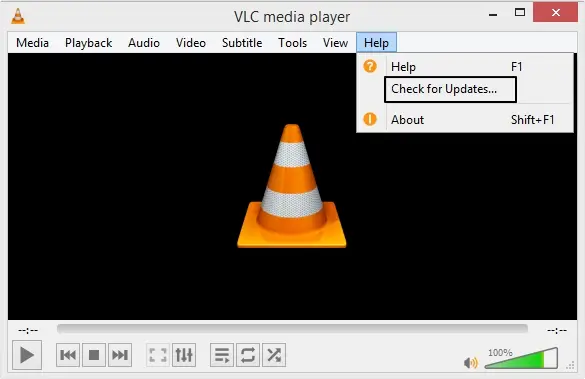
Method 2. Convert MP4 into another format
If your MP4 video is not working in VLC, then you can convert it into another format. Here is how you can do it:
Step 1. Open VLC media player and click on the Media option located at the top left corner, then click on the Convert/Save option.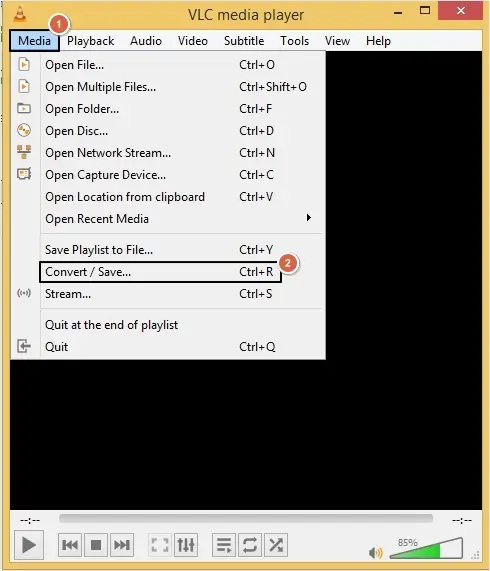
Step 2. Click on the Add button to upload an MP4 file, then click on the Convert/Save button.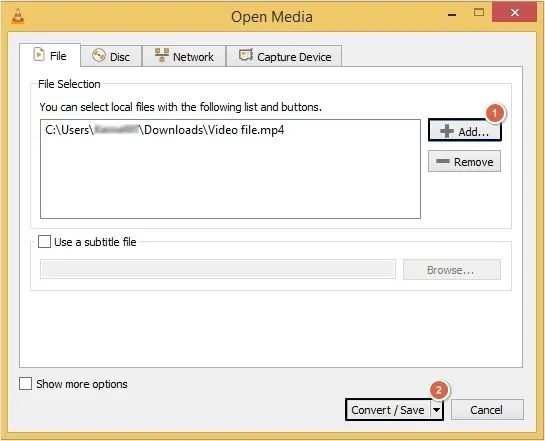
Step 3. Select another video format from the drop-down list against the Profile option, then click on the Browse button to provide a saving location and click the Save button.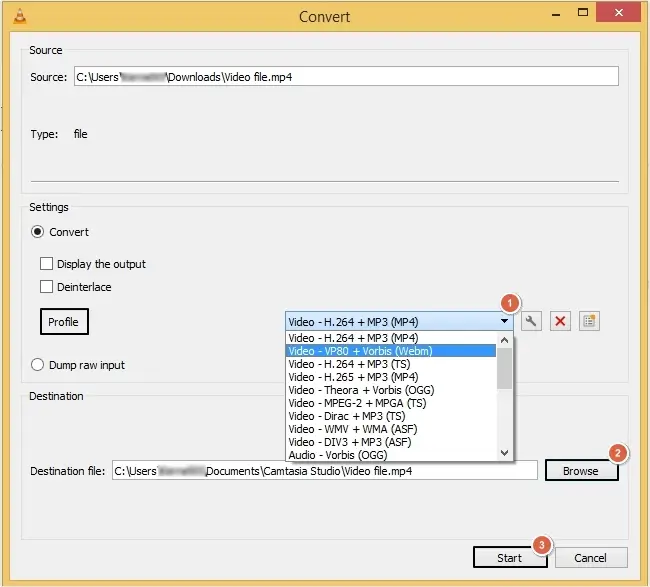
Method 3. Disable hardware decoding
Sometimes, hardware decoding settings can also interfere with your video files. Try to turn off the hardware decoding settings and see if the issue is resolved:
Step 1. In VLC, click on the Tools option, then click on the Preferences option from the drop-down menu.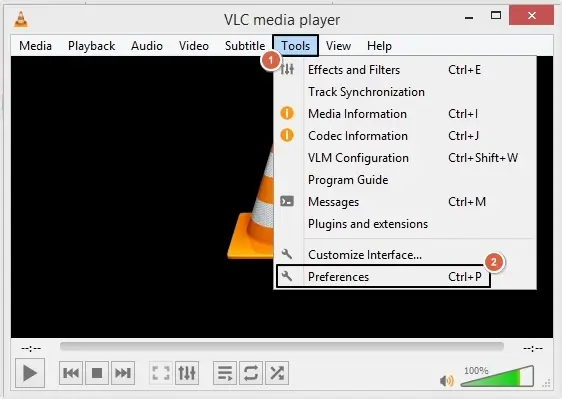
Step 2. Go to Input/Codecs, click on the drop-down menu against Hardware-accelerated decoding and select Disable, then click Save to change the preference settings.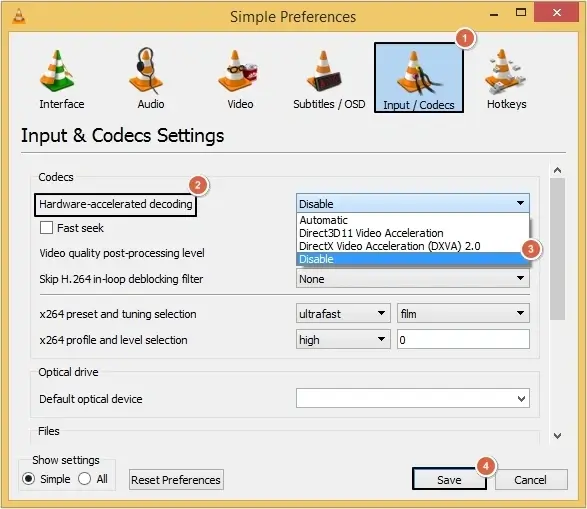
Method 4. Reset VLC preferences
There might be a chance that an incorrect preference setting is configured in VLC. Reset the preference setting and open the MP4 video again:
Step 1. Again in VLC, go to Tools >Preferences.
Step 2. From Interface, click on the Reset Preferences option.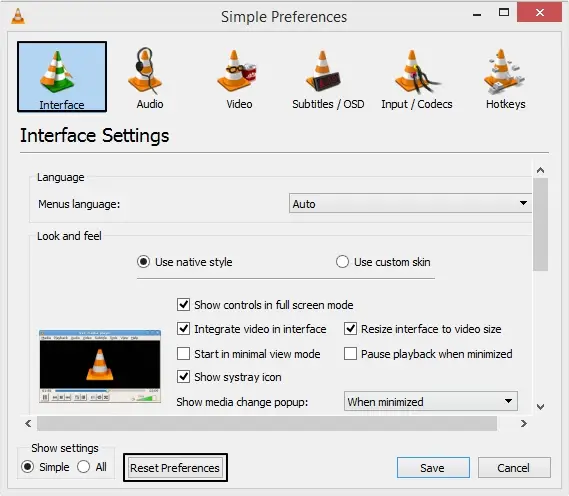
Step 3. You will receive a message saying, “Are you sure you want to reset your VLC media player preferences?”, then click OK.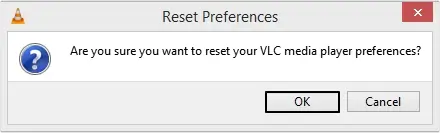
Method 5. Update video drivers
If you are using obsolete video drivers, then they might create issues while playing video. Update the video drivers with the following steps carefully:
Step 1. Press Windows+R keys to open the Run wizard, then type devmgmt.msc and click OK.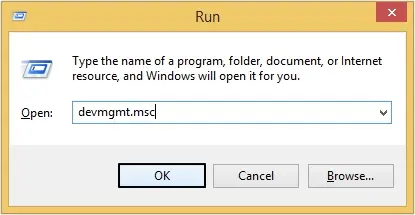
Step 2. Scroll down and look for Disk adapters, then right-click on it and tap on Update Driver Software.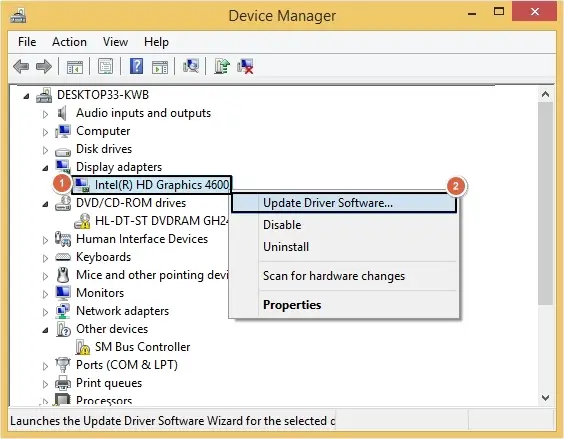
Method 6. Enable Automatic Repair in VLC
VLC offers an in-built option to repair video files automatically. You can enable the automatic repair feature to fix the MP4 file. Here are the steps to do so:
Step 1. In VLC player, go to Tools >Preferences.
Step 2. Tap on Input/Codecs, then look for the Damaged or incompatible AVI file option and choose the Always fix option, and finally click on the Save button.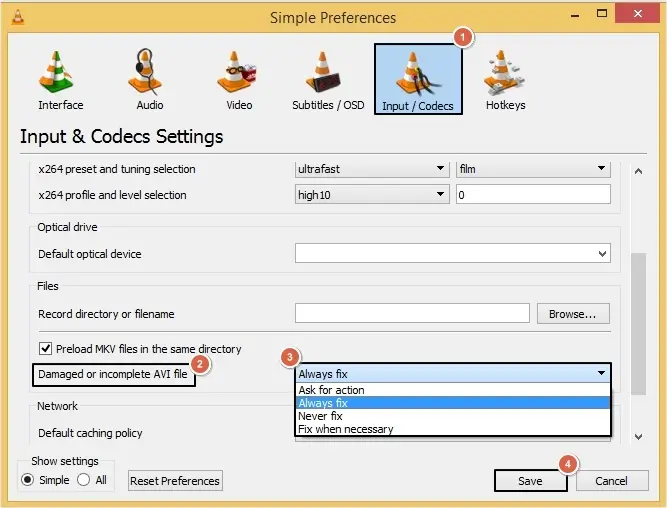
Method 7. Change video resolution settings in VLC
Here are the steps to change preferred video resolution settings in the VLC media player:
Step 1. In VLC, click on Tools >Preferences >Input/Codecs >click All from the show settings.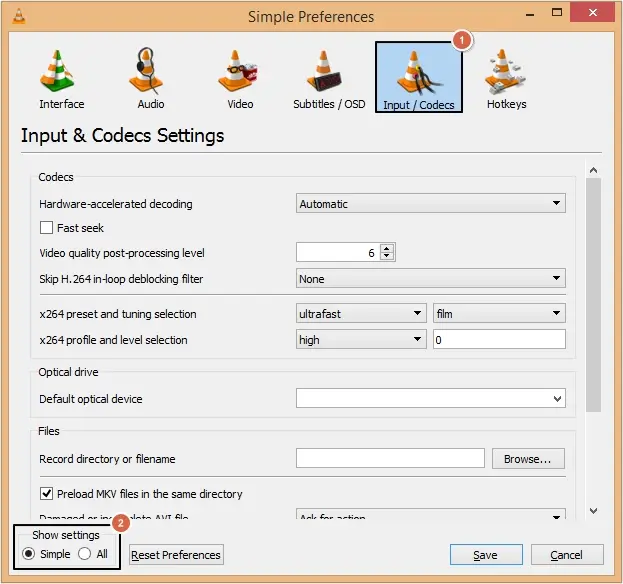
Step 2. Go to Input/Codecs >Preferred video resolution >Full HD (1080p) >Save.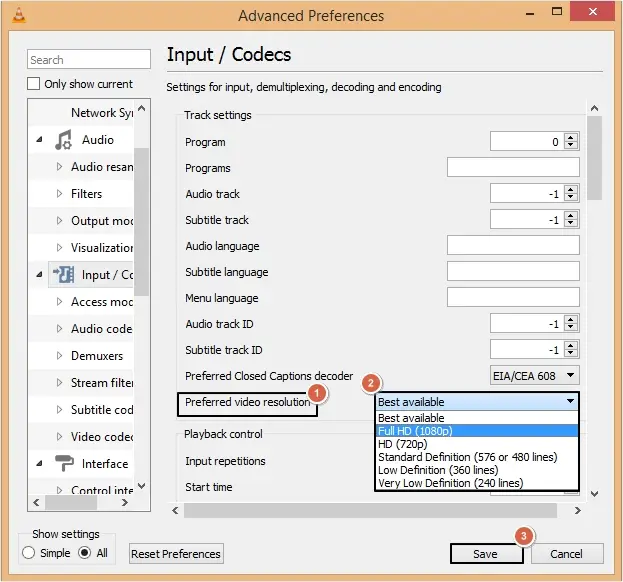
If these methods don’t work for you, then there are chances your MP4 video file is highly corrupted.
Fix Corrupted MP4 Video File with a Professional Solution
If your MP4 file is severely corrupted or damaged, then only an advanced tool like the KDR MP4 Repair tool can fix it. This advanced MP4 Repair Tool supports bulk video file repairing without causing any data loss. Moreover, it offers innovative repairing features and filters for a hassle-free process. Here are some benefits of the tool listed below:
- The tool efficiently repairs large video files (4K or 8K) with no limitations.
- Add a healthy sample video file as a reference to make sure 100% accuracy.
- Preserve file name timestamps, file type, size, and creation date.
- Repair videos recorded with iPhones, GoPro, Dash Cam, DJI, etc., in minutes.
- The demo version allows repairing the first 30 seconds of the video without any issues.
Conclusion
There are many scenarios where VLC can’t play MP4 video files. We have provided some of the best manual methods to resolve this issue. But if the MP4 video is corrupted or damaged, then it won’t be fixed with these methods. In that case, you can use our advanced repair solution. This tool offers excellent features to streamline your experience.
Frequently Asked Questions
A. Check the VLC media player version you are using, change video preference settings, update video drivers, convert MP4 to another format, or change video resolution settings.
A. Use an advanced tool like the KDR MP4 Repair Tool to fix the corrupted MP4 video file.