“After setting up my Office 365 subscription on my new Windows 11 PC, I configured my Outlook Classic account on it. Everything was fine for a few weeks until I faced the Outlook Classic not opening error. I tried finding a solution online, but nothing seems to work. Any suggestions?” – A Microsoft User.
The Outlook Classic not opening issue is possibly one of the most recurring errors faced by Windows 10 and 11 users. Many users even reported that Outlook freezes immediately after opening or shows the ‘Cannot start Microsoft Outlook ’ error. Different underlying issues, like a corrupt profile or a stuck Outlook running in the background, can be the cause of this error.
While this error can easily be fixed by creating a new profile or running Outlook in safe mode, sometimes, when the issue worsens, nothing seems to work. In this guide, we’ll go through the best fixes to resolve the classic Outlook not working issue.
Why is Outlook Classic Not Opening?
If your Outlook Classic not opening in Windows 10, maybe your profile or data file has gotten corrupted. Go through the following reasons to know more:
- Issues with updates: If your Outlook Classic is not opening after recent updates, then there might be a compatibility issue with the email client.
- Faulty add-ins: Third-party add-ins like Teams extensions, Zoom extensions, CRM add-ins, etc., can interfere with the launching of Outlook.
- Corrupt Outlook profile: This is one of the most common reasons why Outlook Classic keeps crashing when opening. Maybe the Outlook profile is corrupt or damaged. This also gives rise to the Cannot start Microsoft Outlook
- Outlook instances running in the background: Maybe some instances of Outlook are still running in the background. It happens when Outlook doesn’t close properly. This prevents the new instances from launching safely.
- Corrupt Outlook data files: Oversized or corrupt Outlook data files (OST & PST) can interfere with Outlook’s functionality, and the email client may even get stuck at processing or loading the profile screen.
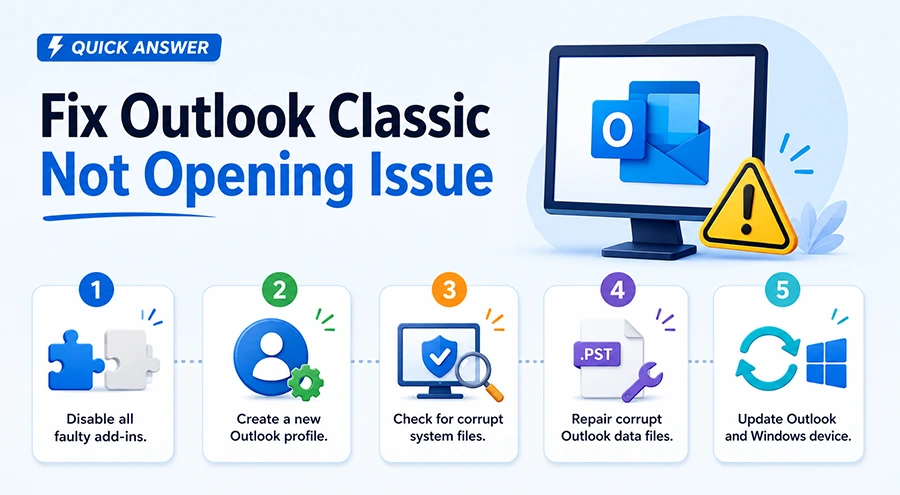
How to Fix Outlook Classic Not Opening Error?
To fix the Outlook error, there are a few methods that you can try, as explained below. Before attempting anything, check your system’s internet connection once and try restarting the Outlook application.
Method 1: Disable faulty add-ins
A lot of times, users face errors because of third-party COM/Add-ins in Classic Outlook. There’s a chance that disabling these faulty add-ins might fix this issue. Follow the steps below for this:
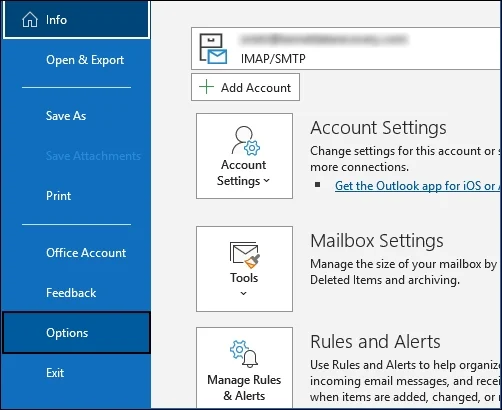
- Open Outlook and go to the File
- Scroll down and select Options.
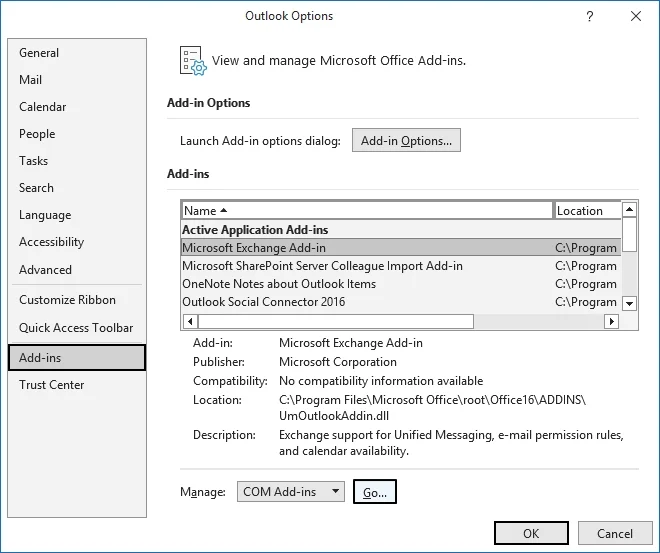
- Choose Add-ins and click on COM Add-ins > Go
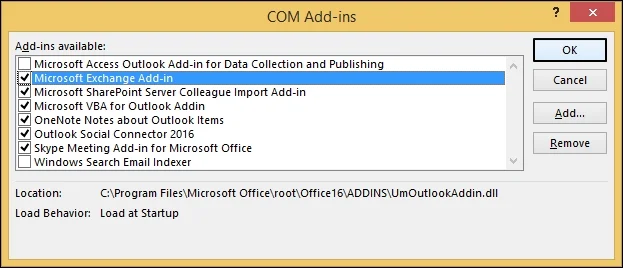
- Uncheck all the add-ins that are causing issues with Outlook’s functioning and then click OK.
- Restart Outlook and see if the issue has been resolved or not.
Method 2: Update Microsoft Outlook and Windows OS
Check for the latest updates available for Microsoft Outlook and Windows OS. Many Windows users report that sometimes Outlook freeze’s mid-function or immediately after launching. This can happen because of an outdated Outlook version.
Follow the steps to update Windows 8 OS:
- Open the Control Panel and select the Windows Update
- Click on Install Updates option (if available) to update Windows OS to the latest version.
Note: For Windows 10 & 11, Open Settings> Updates & Security. Then click on Windows Update and Download & Install (if available).
Steps to Update the Outlook Option:
- Launch Outlook and click on the File
- Then select the Office Account
- Click on Update Options > Update Now in the Office Updates
Method 3: Create a New Outlook Profile
There’s a big possibility that Outlook Classic is not opening for you because of a corrupt Outlook profile. Now, unless you create a new profile, you can’t access any of your mailbox data. Follow the steps below to create a new Outlook Profile:
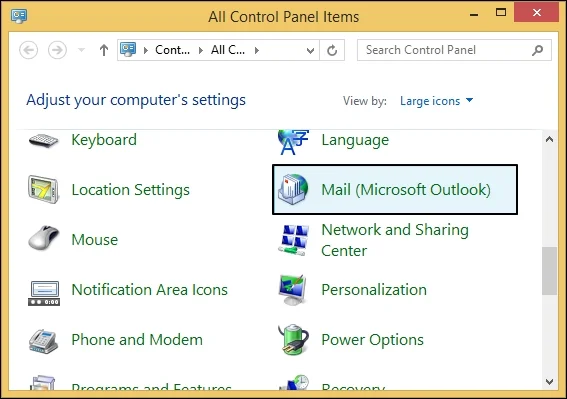
- Open Control Panel and select Mail (Microsoft Outlook).
- Click on Show Profiles and then click on Add.
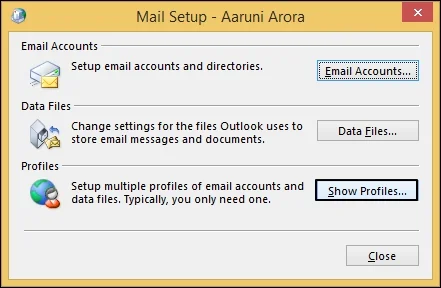
- Give a name to your profile and then click on OK.
- Choose either of the options given in the Add Account window and click on Next.
- Follow all the prompts carefully to create a new Outlook profile.
Method 4: Run Outlook in Safe Mode
Try opening the Outlook Classic mailbox in safe mode to fix not opening issue. Follow these simple steps for this:
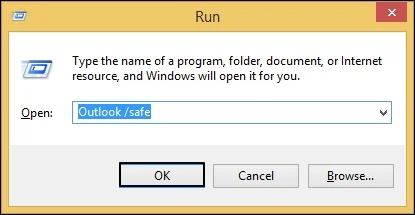
- Press Win + R on your keyboard to open the Run
- Type in exe /safe to launch the email client in safe mode.
Note: If Outlook Classic is not opening in safe mode as well, then your system files can be corrupted or damaged.
Method 5: Run Microsoft Office Repair Utility
Microsoft has a built-in repair tool that allows users to repair Microsoft Office programs, fix corrupt files, and configuration errors. There are namely two ways, Quick Repair and Online Repair to fix corruption. Follow the steps below to use this utility:
- Close all Microsoft Office programs running in the background.
- Then go to Control Panel and click on Programs and Features.
- Scroll down and right-click on Microsoft 365 Apps > Change.
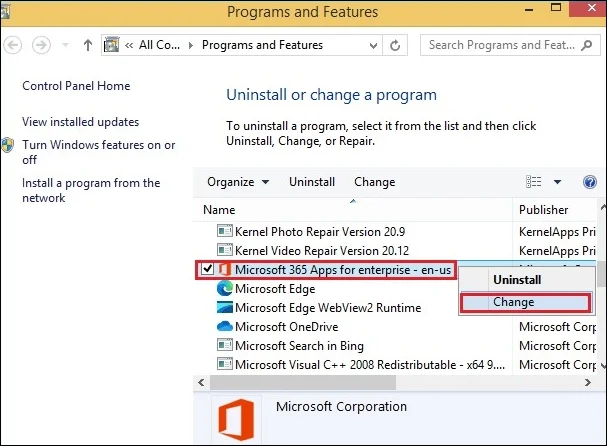
- Choose between Quick Repair or Online Repair option and click on Repair.
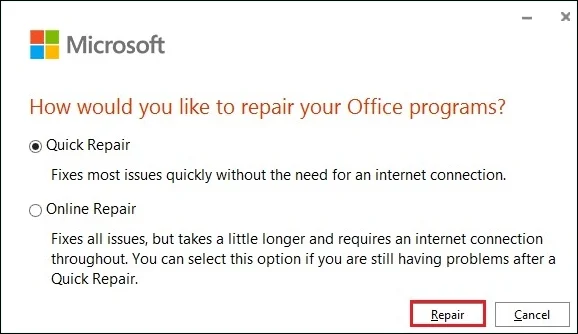
- Follow the on-screen instructions to fix the Outlook Classic not opening issue.
Method 6: Reset the Corrupt Navigation Pane
Try to reset the navigation pane of your system if your Outlook Classic keeps crashing when opening. Follow the steps below for this:
- Close all instances of Outlook running in the background.
- Press Win + R on your keyboard to open the Run
- Type in the ‘exe /resetnavpane‘ command and hit Enter.
Method 7: Repair Corrupt PST Using ScanPST.exe
Another reason why you’re facing the Outlook Classic not opening in Windows 10 is that your PST file is corrupt. Try repairing the corrupt PST files with the Inbox Repair Tool to see if it resolves the issue. Follow the steps below for this task:
- Close Outlook properly and locate ScanPST.exe on your system.
64-bit Microsoft Office: C:\Program Files\Microsoft Office\root\Office16
32-bit Microsoft Office: C:\Program Files (x86)\Microsoft Office\root\Office16
- Double-click on ScanPST.exe to launch the tool.
- Click on Browse to add Outlook data files like OST and PST to this utility and hit Start.
- If there’s any corruption in the PST files, the tool will find it during the scan.
- Click on Repair to start the repair process.
Note: ScanPST.exe isn’t available to New Outlook users because local PST files aren’t supported in the new email client.
Method 8: Check If You’ve Accidentally Shifted to New Outlook
If your Classic Outlook is not working but New Outlook works, then maybe your Classic Outlook is now disabled on your system. With the Outlook Classic End of Life approaching soon, Microsoft is asking users to adopt New Outlook permanently.
If Outlook Classic is inaccessible or fails to open, reinstall Classic Outlook on your Windows PC.
Troubleshooting Tips For IT Admins to Fix Outlook Classic Not Opening Error
These troubleshooting tips might help IT admins fix Outlook Classic not opening in Windows 11 issue.
- Terminate unresponsive background processes from the task manager.
- Check recent event viewer logs to look for Outlook-related crashes and the cause for it.
- Check if there’s an issue with authentication or Azure AD.
- Clear the accumulated cache and run Outlook in safe mode.
- Run SFC and DISM scans to look for any corrupt or damaged system files.
What to Do If Outlook Classic Still Won’t Open?
If Outlook keeps crashing when opening, even after creating a new profile and opening it in safe mode, then the core issue behind this error is something else. Organizations at this point need an alternative way to access their stored data without having to open Outlook.
Also, for big enterprises, sometimes Outlook won’t start because your mailbox files are severely damaged. Running ScanPST.exe is the only viable solution to recover your damaged or corrupted files. But what happens when even ScanPST.exe fails? IT admins might need to import bulk PST files into Office 365 to keep the workflow going. KDR Import PST to Office 365 Tool can be helpful in these recovery scenarios to safely import all PST files to a safe location.
Final Notes
Not being able to access your mailbox data because Outlook Classic is not opening can interrupt personal and professional workflow. Sometimes, this email client gets stuck on the loading screen or freezes immediately after launching. The methods discussed in this blog will help you troubleshoot this error and get Outlook working normally again.
People Also Ask
Follow these simple steps to close a stuck Outlook process:
1. Open the Task Manager by pressing Ctrl + Shift + Esc on your keyboard.
2. Then look for Microsoft Outlook and right-click to select End Task.
Outlook Classic not opening after an update is a common issue many people face, especially when they update to Windows 11. Another reason for this can be that your update isn’t installed properly.