There's nothing more frustrating than watching your video and suddenly facing "error 0xc00d36c4". It is a common yet stressful error that many Windows users face while watching their MP4 videos.
MP4 files function by combining audio and video codecs to play a media file. When a file plays videos perfectly but doesn’t play any audio, then it may have issues with codecs. This can also happen due to corruption in MP4 file or media player issues. It’s not uncommon for users to face this issue with their MP4 files. We’ll talk in detail about the “MP4 no audio” issue in this blog, outlining the potential reasons behind this error and some easy ways to fix it.
Common reasons of “MP4 video has no sound” issue
There are several reasons why an MP4 file might have issues with its audio. We’ve listed some of the most common issues below:
- Faulty codec: If your MP4 file is missing or doesn’t support the required codec, it can create a lot of issues with the audio of your MP4 file. Generally, this issue can stem from a faulty codec related to audio function of MP4 files like AAC, MP3, or AC-3.
- Media player is damaged: Your media player (Windows Media Player, VLC) might be corrupt or damaged which might interfere with your MP4 file.
- Outdated audio drivers: Audio drivers in sound cards can become corrupt or may be outdated which can lead to audio issues.
- Downloading errors: Errors or interruptions while downloading an MP4 file can damage the video file and create issues with the audio and even the picture quality.
Ways to fix “MP4 video has no sound” issue
If facing “my MP4 has no sound” issue, there are a few workarounds that can effectively resolve the error. Follow stepwise guidance given below:
Method 1. Install the correct codecs
Audio codecs are software programs that encode and decode audio data in video files. When a codec is faulty or missing, the video plays with no sound at all. It happens when the media player is unable to decode the audio codec. To play video file with uninterrupted audio, users need to install the right codecs required for your media player. Follow the steps below to do so:
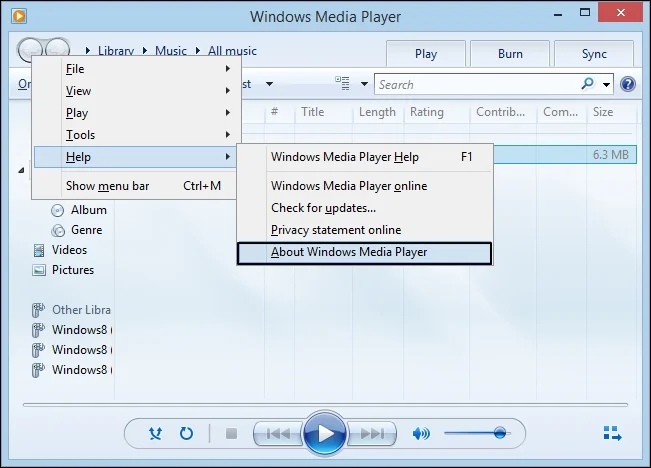
- Launch Windows Media Player and press Alt + H to open the Help Menu.
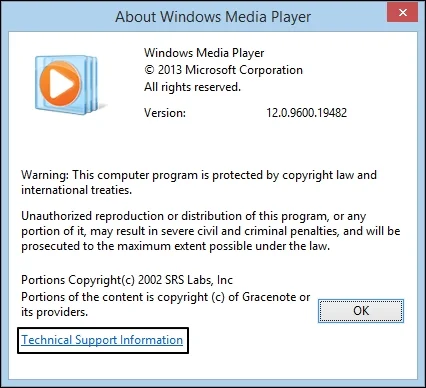
- Choose About Windows Media Player from the list to open a new dialogue box.
- Click on the Technical Support Information option.
- In the pop up that appears, click on ‘Select your web browser’.
- A new tab will open on your browser displaying all the technical information about Windows Media Player including Audio codecs and Video codecs.
- Download the right audio codecs required to play the video.
Method 2. Convert MP4 into another format
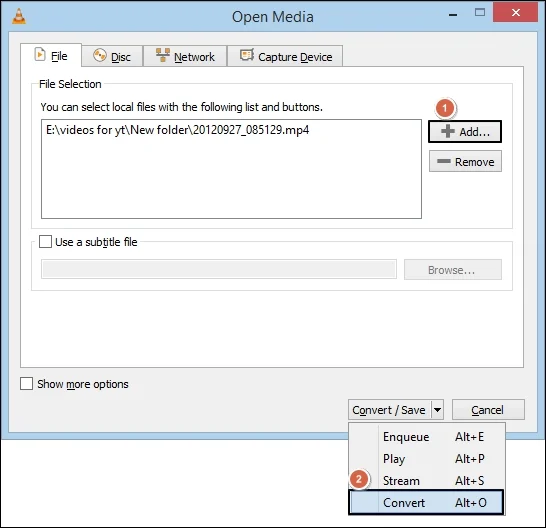
Maybe MP4 files aren’t compatible with your media player, which is why there’s problem with audio playing. There are two ways to convert your MP4 files to another format that’s compatible with your media player. Either you can use an online MP4 converter or use VLC media player. Since online MP4 converters aren’t the most reliable option, users often use VLC media player for MP4 conversion. Steps to convert MP4 files using VLC media player are:
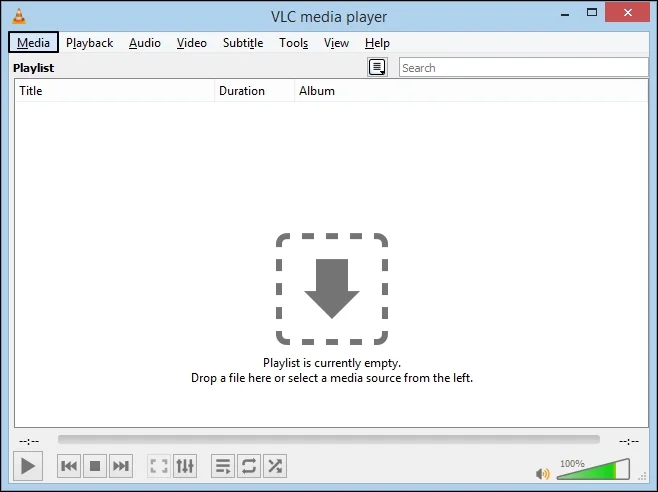
- Open VLC Media Player and click on the Media tab.
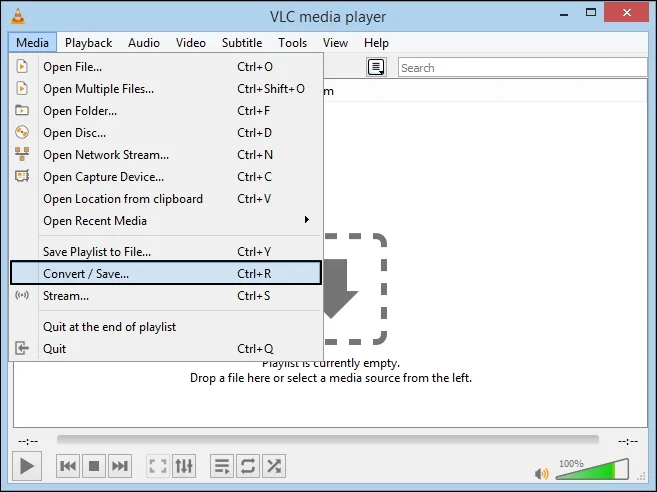
- Choose the Convert/Save option to open the Open Media dialog box.
- In the new dialog box, add your MP4 files and click on the small dropdown arrow beside the Convert/Save option.
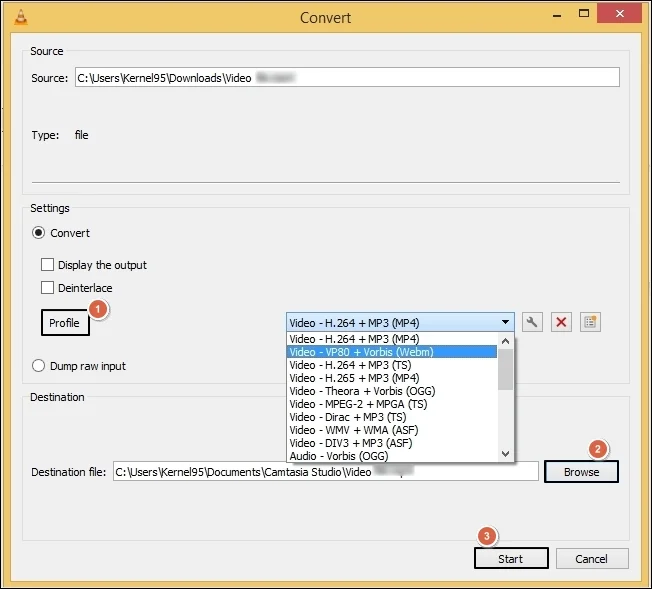
- Choose Convert from the dropdown list and select your choice of output format.
- Click on Browse to choose the saving location and give a new name to the file.
- Hit Start to begin the conversion process.
Method 3: Play MP4 files on a different media player
Playing MP4 files on a different media player may resolve the "MP4 file has no sound” issue. If you’re having trouble with the default Windows Media Player, then try playing the video in VLC once. You can also try to play your MP4 files in QuickTime Player but you’ll have to convert MP4 files to a suitable format first.
What are the risks of manual methods?
The given methods carry significant risks and may not be suitable for all types of users. We have given the most common risks below:
- Some of the given methods might be too complex for non-technical users. Like the method related to codecs, you need some level of technical knowledge.
- These methods are a bit lengthy and time-consuming, with no guaranteed results.
- The given methods are just general workarounds and may not be quite effective for the MP4 audio issue.
- While trying to fix MP4 files using these methods, you may risk damaging your file even further.
Reliable way to fix “MP4 video has no sound” issue
Trying to resolve “MP4 file has no sound” issue using the given methods may get the job done, but there’s no guarantee of accuracy. There’s also the risk of damaging the files even further because of the technical nature of some methods. Using a professional MP4 repair tool is the best option to safely repair MP4 files without any risks.
KDR MP4 Repair tool is an advanced tool designed to address and resolve errors related to corrupt MP4 files. This video repair tool restores the corrupt video files to their original state without harming the quality or format of the video. Users can repair multiple MP4 files at once to save time and effort without losing any data.
Repair MP4 videos from different kinds of cameras like GoPro, DSLRs (Canon/Nikon), smartphones (Android/iOS), and drones. Save the recovered MP4 files at your desired location while preserving the original metadata, like file name, file type, timestamps, etc. Get the trial version of KDR MP4 Repair tool and repair the first 30 seconds of your MP4 files for free.
Final say
Facing the “MP4 video has no sound” issue is not a complex issue, but still, you need some practical workarounds to fix this issue. Follow the above method to troubleshoot the problem manually. However, if the MP4 file is too damaged, then manual methods may fall short. For a risk-free repair of MP4 files, use a reliable MP4 repair tool. This tool can easily repair large-sized videos without any issues. Take the free trial today.
Frequently Asked Questions
Q. Why does my MP4 has no sound?
A. MP4 file may have no sound due to a faulty or misconfigured audio codec, issues with media player, corruption in MP4 file, outdated audio drivers, etc. These are the most common issues behind this error.
Q. Why is Windows Media Player not playing MP4 audio file?
A. If Windows Media Player is not playing your MP4 file correctly, then there must be an issue with the audio codecs or misconfiguration of the media player settings.
Q. How do I fix audio of my video file?
A. Some workarounds to fix the “MP4 file has no sound issue” include installing the right codecs, playing the MP4 file on a different media player, converting MP4 to another format, etc.
